Import & Export Data
Your customer data probably lives in more than one place: a Shopify store, a CRM, a spreadsheet. Import brings that file into Lucia, so every row becomes a customer profile next to your campaign data. Export sends your reports and profiles back out, ready for a spreadsheet, a slide, or another tool.
You'll find both in the dashboard under Settings → Data, which has three tabs:
Upload a CSV, XLSX, or JSON file and turn each row into a Lucia user profile.
Download campaign, link, attribution, and profile data as CSV, Excel, PDF, or JSON.
See exactly which profile fields Import fills and Export includes, and turn them on or off.
Import customer data
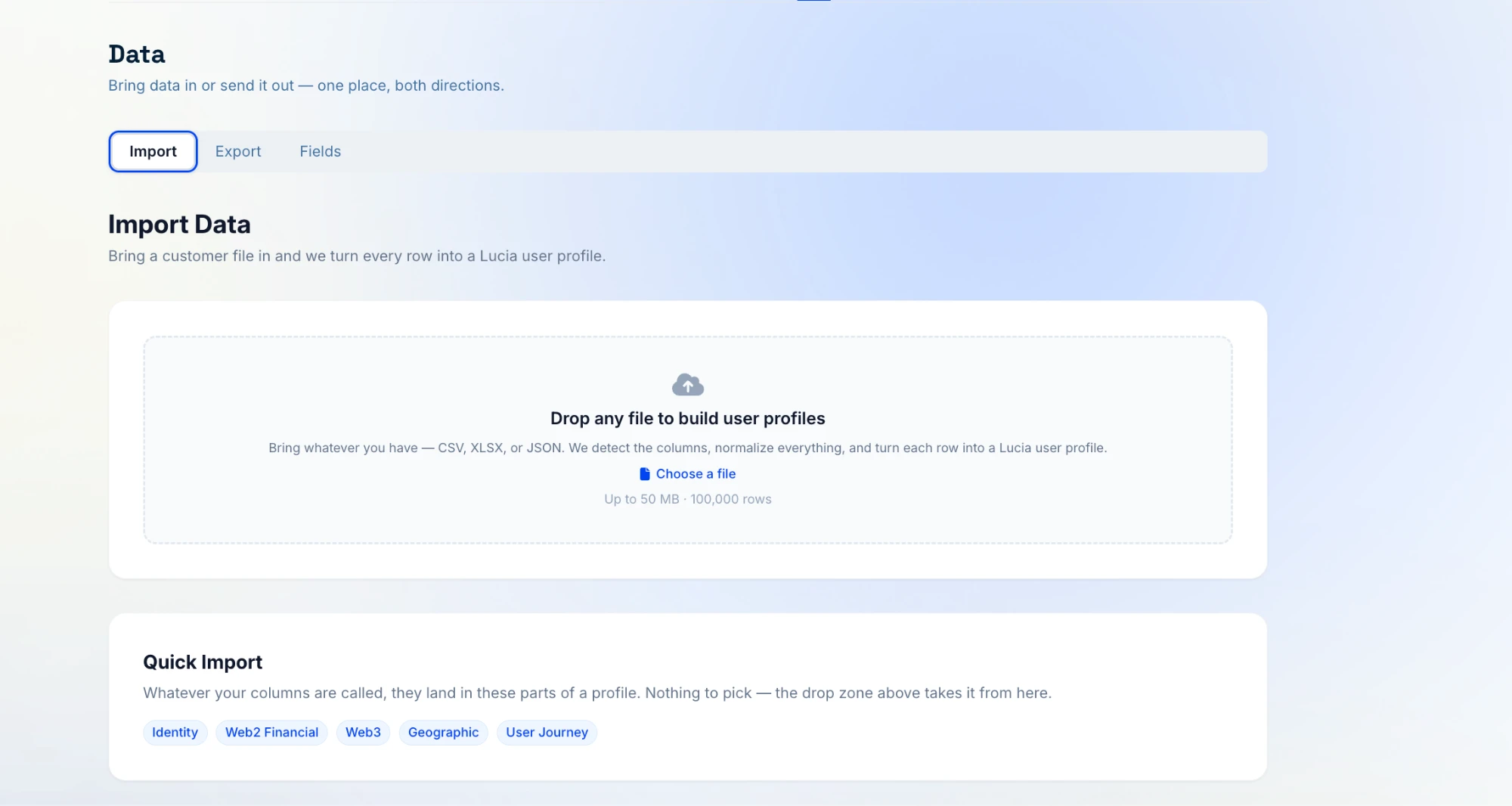
What you can upload
- Formats: CSV, XLSX, or JSON
- Size: up to 50 MB and 100,000 rows per file
- Columns: anything. You don't need to rename your columns to match Lucia.
An import takes three steps:
1. Upload
Drop the file on the drop zone, or click Choose a file. Lucia reads the columns and
matches each one to a profile field. For example, a column called given name or firstname
lands in First name. The Quick Import card shows the parts of a profile your columns
can fill: Identity, Web2 Financial, Web3, Geographic, and User Journey.
Upload a Shopify orders export as it is. Lucia recognizes it and maps the columns for you. Customers are matched by email, or by phone when there's no email. Unpaid, cancelled, and fully refunded orders don't count as revenue, and partial refunds are subtracted.
2. Map & review
Before anything is saved, you get a preview of what the import will do:
- Column mapping: your columns on the left, Lucia fields on the right. Most columns match automatically, and you can change any match that's wrong.
- Source currency: confirm what currency your amounts are in. Lucia suggests one if the file names it. Amounts are stored as they are, with no conversion. Each import uses one currency, so if the currency column is mapped, rows in a different currency are rejected.
- Dry run: how many customers the file holds (new vs. already in Lucia), and for an orders file, how many orders and how much revenue. Every row is counted as Clean, Partial (imported, but some values couldn't be used), or Rejected, and you can open the list of rejected rows to see why.
- Preview: the first few rows exactly as they'll be saved.
If a figure looks wrong, such as revenue that's far too high, fix the mapping or the currency first. The preview updates as you change things.
If your file has an Order ID and Order date for each purchase, Lucia counts each row as an order and adds it to revenue. A file with just a total per customer (like "total spent") is read as each customer's lifetime spend. It shows on their profile but isn't counted as revenue.
3. Import
Click Import (the button shows how many customers and orders will be added). The import keeps running if you leave the page. When it's done, you'll see how many rows were imported, partially imported, and rejected, with a link to View imported profiles.
Only one import can run at a time.
Import history
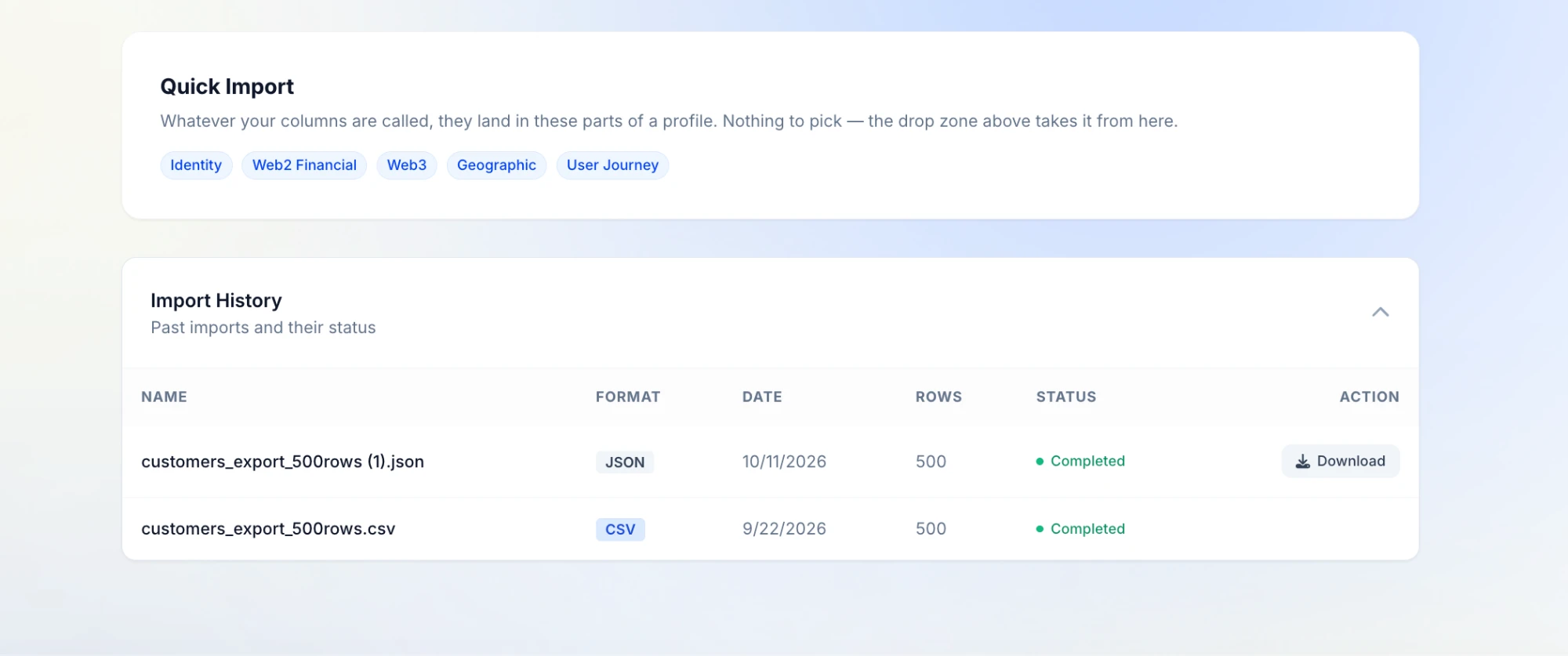
Every past import is listed with its format, date, row count, and status. If some rows were rejected, Download gives you a file of just those rows and what was wrong with each, so you can fix them and import them again.
Export your data
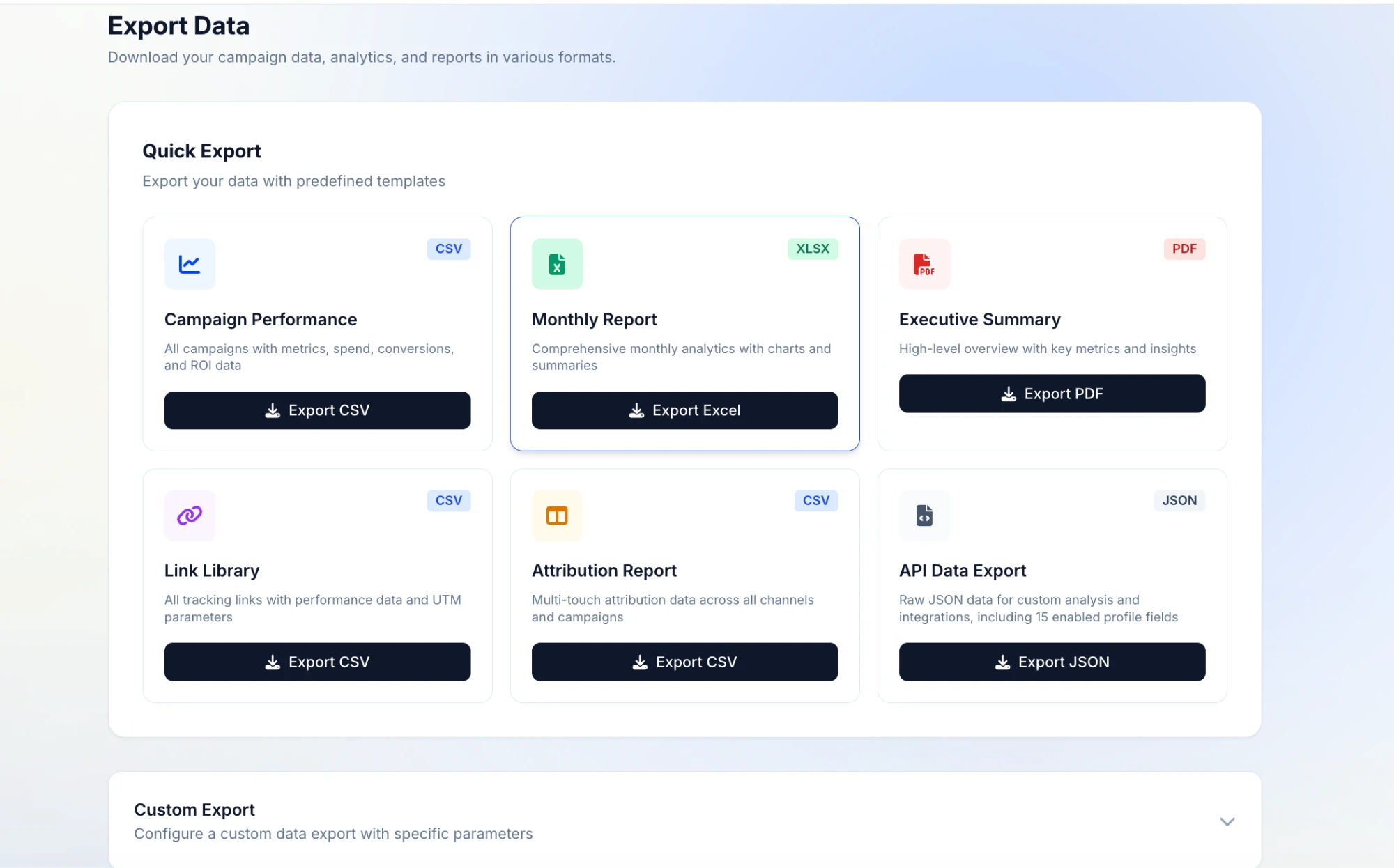
Quick Export has ready-made templates:
| Template | Format | What's in it |
|---|---|---|
| Campaign Performance | CSV | Every campaign with metrics, spend, conversions, and ROI |
| Monthly Report | XLSX | Monthly analytics with charts and summaries |
| Executive Summary | A high-level overview of key metrics and insights | |
| Link Library | CSV | Every tracking link with its performance and UTM parameters |
| Attribution Report | CSV | Multi-touch attribution across all channels and campaigns |
| API Data Export | JSON | Raw data for your own analysis or integrations, including every profile field enabled for export |
Need something specific? Open Custom Export and choose:
- Data type: Campaigns, Links, Conversions, Users, or Analytics
- Format: CSV, Excel (XLSX), PDF, or JSON
- Date range: a start and end date, up to 365 days apart
Exports are prepared in the background. When one is ready, download it from Export History. Only one export can run at a time.
Choose which fields come in and go out
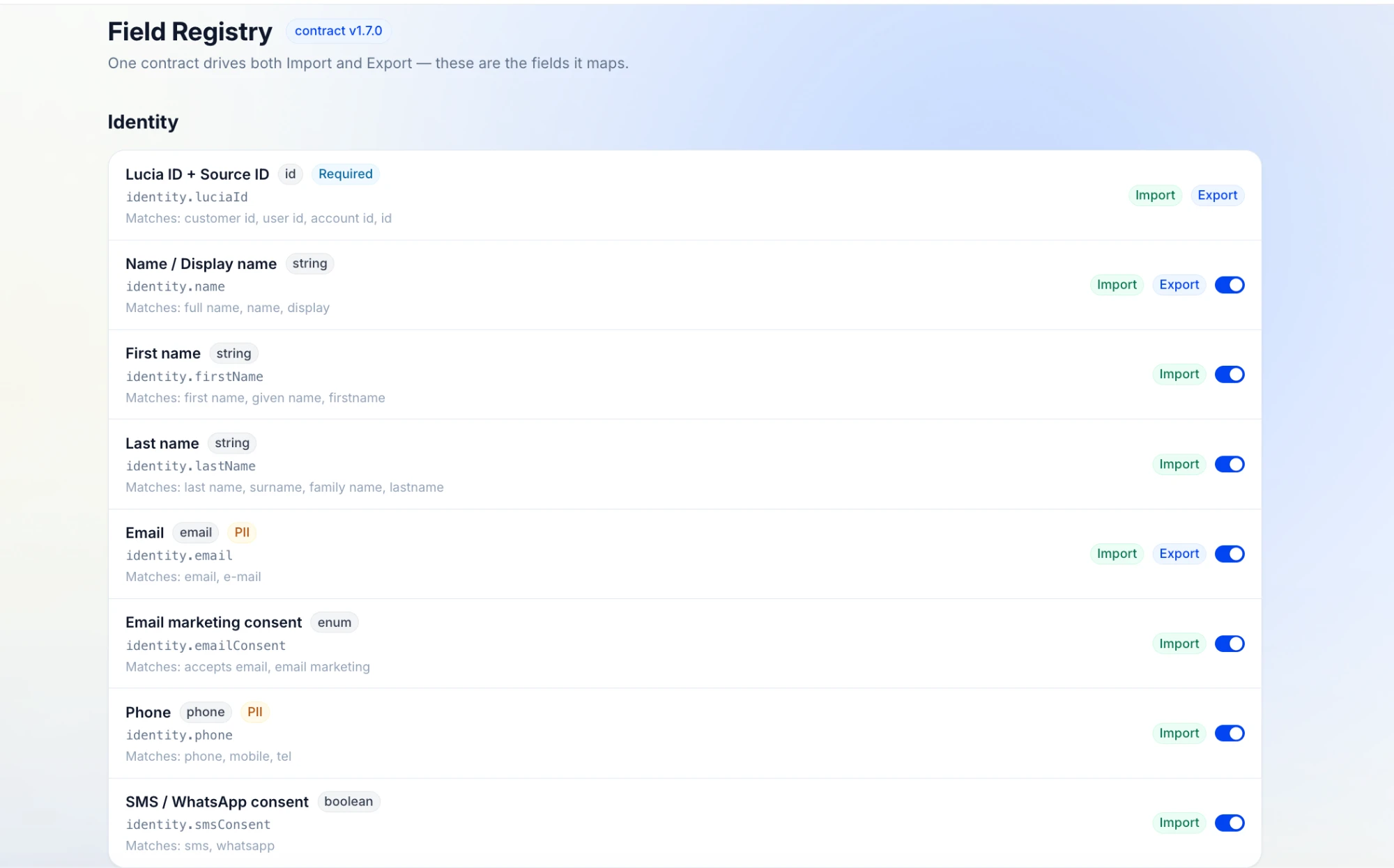
The Fields tab lists every profile field Lucia knows, grouped by section. Import and Export both follow this one list. Each field shows:
- Its name and type, such as
string,email,date, ormoney - Its key, such as
identity.emailorweb2.orderId - Matches: the column names Import recognizes for it, such as
surnameorfamily namefor Last name - Import / Export badges showing which directions it's used in
- PII, marking personal data like email and phone
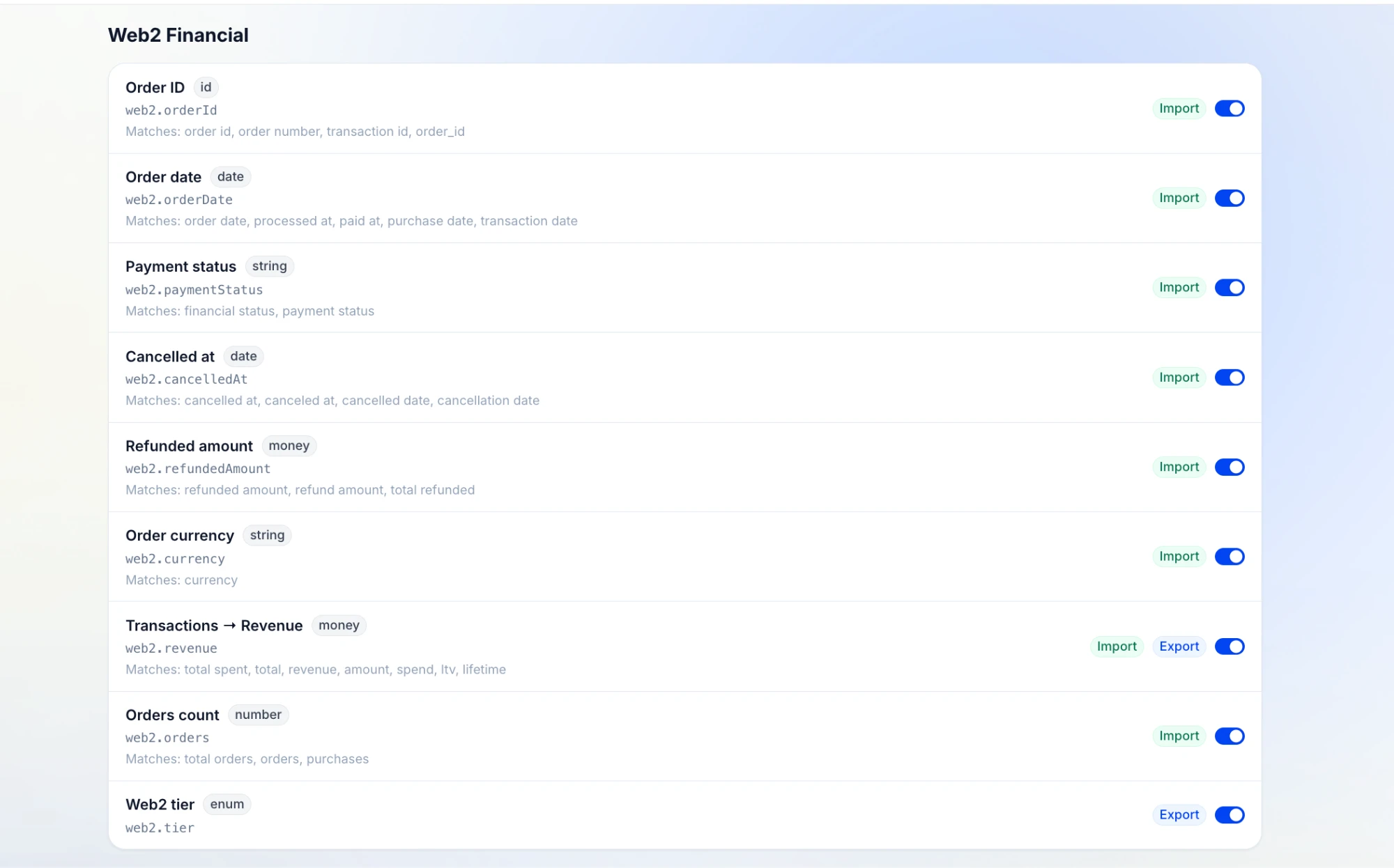
Admins can switch a field off with its toggle. A disabled field is skipped by both Import and Export. For example, turn off Phone if you don't want phone numbers stored or included in exports. Fields marked Required, like the Lucia ID, can't be turned off.
Field reference
Some fields go both ways. Others only come in from your files, like order details. Some only go out, because Lucia works them out for you, like a customer's source campaign or activity status. The Fields tab always shows the current list for your workspace (field contract v1.7.0 at the time of writing), including anything an admin has switched off.
Identity: who the customer is
| Field | Key | In | Out | Column names it recognizes |
|---|---|---|---|---|
| Lucia ID + Source ID (required) | identity.luciaId | ✓ | ✓ | customer id, user id, account id, id |
| Name / Display name | identity.name | ✓ | ✓ | full name, name, display |
| First name | identity.firstName | ✓ | first name, given name, firstname | |
| Last name | identity.lastName | ✓ | last name, surname, family name, lastname | |
| Email (PII) | identity.email | ✓ | ✓ | email, e-mail |
| Email marketing consent | identity.emailConsent | ✓ | accepts email, email marketing | |
| Phone (PII) | identity.phone | ✓ | phone, mobile, tel | |
| SMS / WhatsApp consent | identity.smsConsent | ✓ | sms, whatsapp |
Web2 Financial: what they bought
| Field | Key | In | Out | Column names it recognizes |
|---|---|---|---|---|
| Order ID | web2.orderId | ✓ | order id, order number, transaction id, order_id | |
| Order date | web2.orderDate | ✓ | order date, processed at, paid at, purchase date, transaction date | |
| Payment status | web2.paymentStatus | ✓ | financial status, payment status | |
| Cancelled at | web2.cancelledAt | ✓ | cancelled at, canceled at, cancelled date, cancellation date | |
| Refunded amount | web2.refundedAmount | ✓ | refunded amount, refund amount, total refunded | |
| Order currency | web2.currency | ✓ | currency | |
| Transactions → Revenue | web2.revenue | ✓ | ✓ | total spent, total, revenue, amount, spend, ltv, lifetime |
| Orders count | web2.orders | ✓ | total orders, orders, purchases | |
| Web2 tier | web2.tier | ✓ | (calculated by Lucia) |
Web3: their wallets
| Field | Key | In | Out | Column names it recognizes |
|---|---|---|---|---|
| Web3 wallet address (PII) | web3.wallet | ✓ | wallet, 0x, eth address, public key, pubkey | |
| Web3 chain / network | web3.chain | chain, network, blockchain (can be switched off; an admin turns it back on) | ||
| Wallet category | web3.category | ✓ | (calculated by Lucia) | |
| Total value locked | web3.tvl | ✓ | (calculated by Lucia) | |
| Profit & loss | web3.pnl | — |
Geographic: where they are
| Field | Key | In | Out | Column names it recognizes |
|---|---|---|---|---|
| Location (free text) (PII) | geo.location | ✓ | ✓ | location |
| City (PII) | geo.city | ✓ | city, town | |
| State / province / region | geo.region | ✓ | province, state, region, county | |
| Country | geo.country | ✓ | country |
User Journey: how they found you and what they've done since
| Field | Key | In | Out | Column names it recognizes |
|---|---|---|---|---|
| Profile tags | journey.tags | ✓ | ✓ | tags, segment, labels |
| Acquisition source | journey.acquisition | ✓ | ✓ | source, utm, referrer, channel |
| Member since | journey.memberSince | ✓ | ✓ | created, member since, signup, join |
| Source campaign | journey.sourceCampaign | ✓ | (calculated by Lucia) | |
| Activity events | journey.events | ✓ | (calculated by Lucia) | |
| Conversions | journey.conversions | ✓ | (calculated by Lucia) | |
| Activity status | journey.activityStatus | ✓ | (calculated by Lucia) |
Include a wallet column if you have one. It links the customer's on-chain activity to the
same profile as their purchases. An Acquisition source column (e.g. utm or referrer)
tells Lucia where customers came from before the SDK was installed.
Common questions
Will importing create duplicate profiles?
No. During the dry run, Lucia shows how many customers in the file are new and how many are already in Lucia. Existing customers are matched rather than added again.
What happens to rows that are rejected?
They aren't imported, and nothing else in the file is affected. Download the error file from Import History, fix the rows, and upload them again.
Does Lucia convert currencies?
No. Amounts are stored in the currency you confirm during import. If your data uses several currencies, import each one as its own file.
How does imported data help attribution?
Imported purchases and lifetime spend join the same profile as that person's ad clicks, visits, and wallet connects. That means revenue from your store or CRM can be credited to the campaign that first brought the customer in. To learn how Lucia builds one profile per person, see Consolidated Identifier Tracking.