Connect Claude to Lucia (MCP)
Lucia runs an MCP server. Once Claude is connected to it, you can ask Claude in plain language to list your campaigns, create one, check results, or draft outreach, and it works directly in your Lucia workspace.
You need: Claude Code (CLI) or Claude Desktop, and a Lucia dashboard account.
Server URL: https://mcp.luciaprotocol.com/mcp
You sign in with your Lucia account in the browser (OAuth). You don't need an API key.
Claude connects to whichever Lucia account you sign in with during setup. If your browser is already signed in at app.luciaprotocol.com, that account is used. Check it there before you connect.
Part I: Claude Code (CLI)
-
Add the server.
-s usermakes it available in every folder; leave it out to scope it to the current project only.claude mcp add --transport http -s user lucia-outreach https://mcp.luciaprotocol.com/mcp -
Start Claude and authenticate:
claudeType
/mcp, select lucia-outreach, then Authenticate. A browser opens. Sign in to Lucia (email code) and approve access. -
Start a fresh
claudesession so it picks up the tools.
Authenticate from the terminal /mcp command. The Code tab in the desktop app can't complete the sign-in.
Check it's connected: claude mcp list should show:
lucia-outreach: https://mcp.luciaprotocol.com/mcp (HTTP) - ✓ Connected
Before you authenticate, it shows Needs authentication.
Part II: Claude Desktop
1. Add a custom connector
In Claude Desktop, open Plugins (in some versions, Settings → Connectors), click Add, and choose to add a custom connector. Fill in:
| Field | Value |
|---|---|
| Name | Lucia (only a label in your connectors list) |
| MCP server URL | https://mcp.luciaprotocol.com/mcp (include /mcp at the end) |
Click Continue.
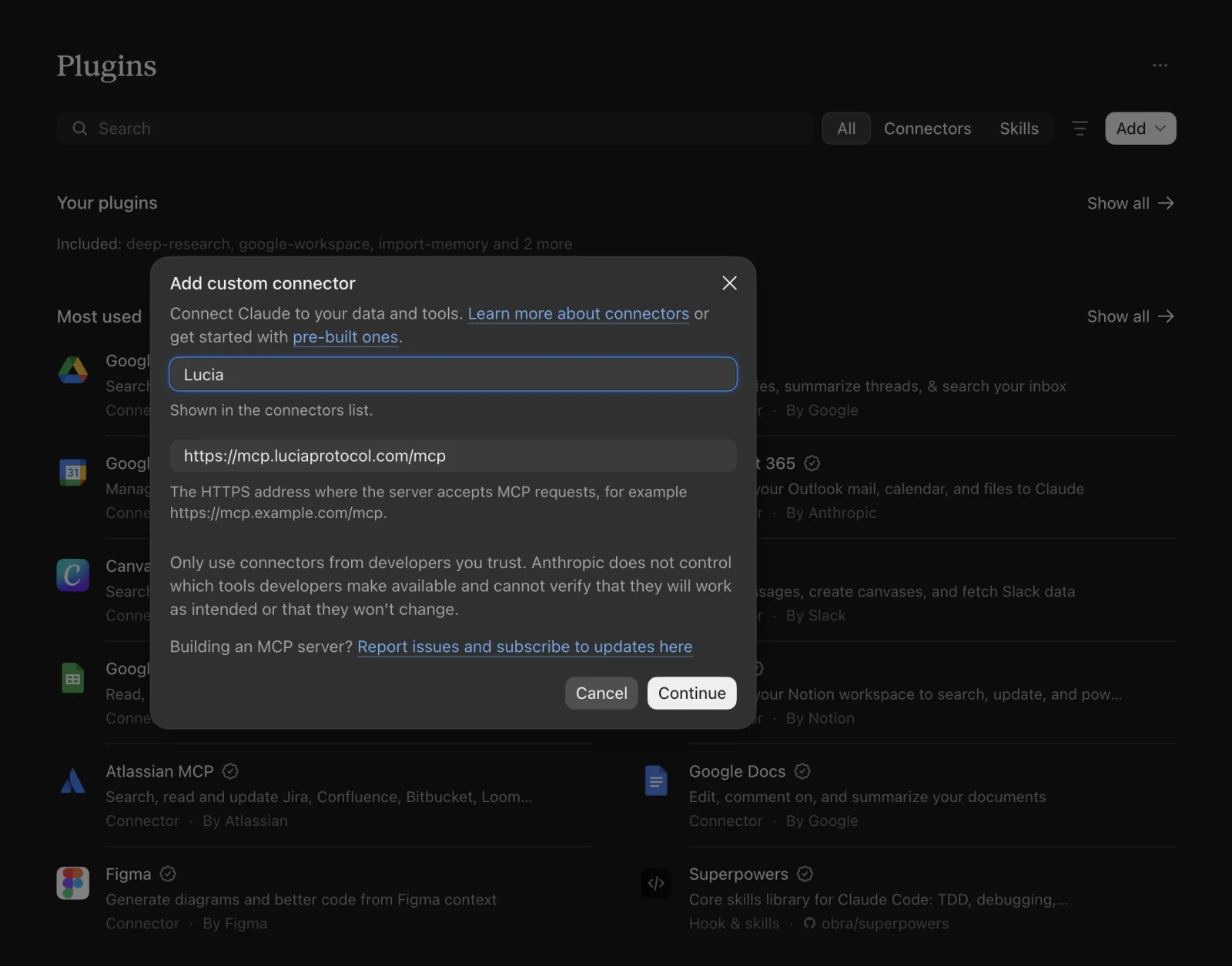
2. Keep the detected sign-in settings
Claude checks the server and pre-selects the right options, marked Detected. Keep them:
| Section | Select |
|---|---|
| Authentication | Sign in now. Every Lucia tool needs your account. |
| OAuth client | Register automatically. Claude registers itself with Lucia's sign-in service. |
| Request headers | Leave empty. Lucia uses the browser sign-in, not an API key. |
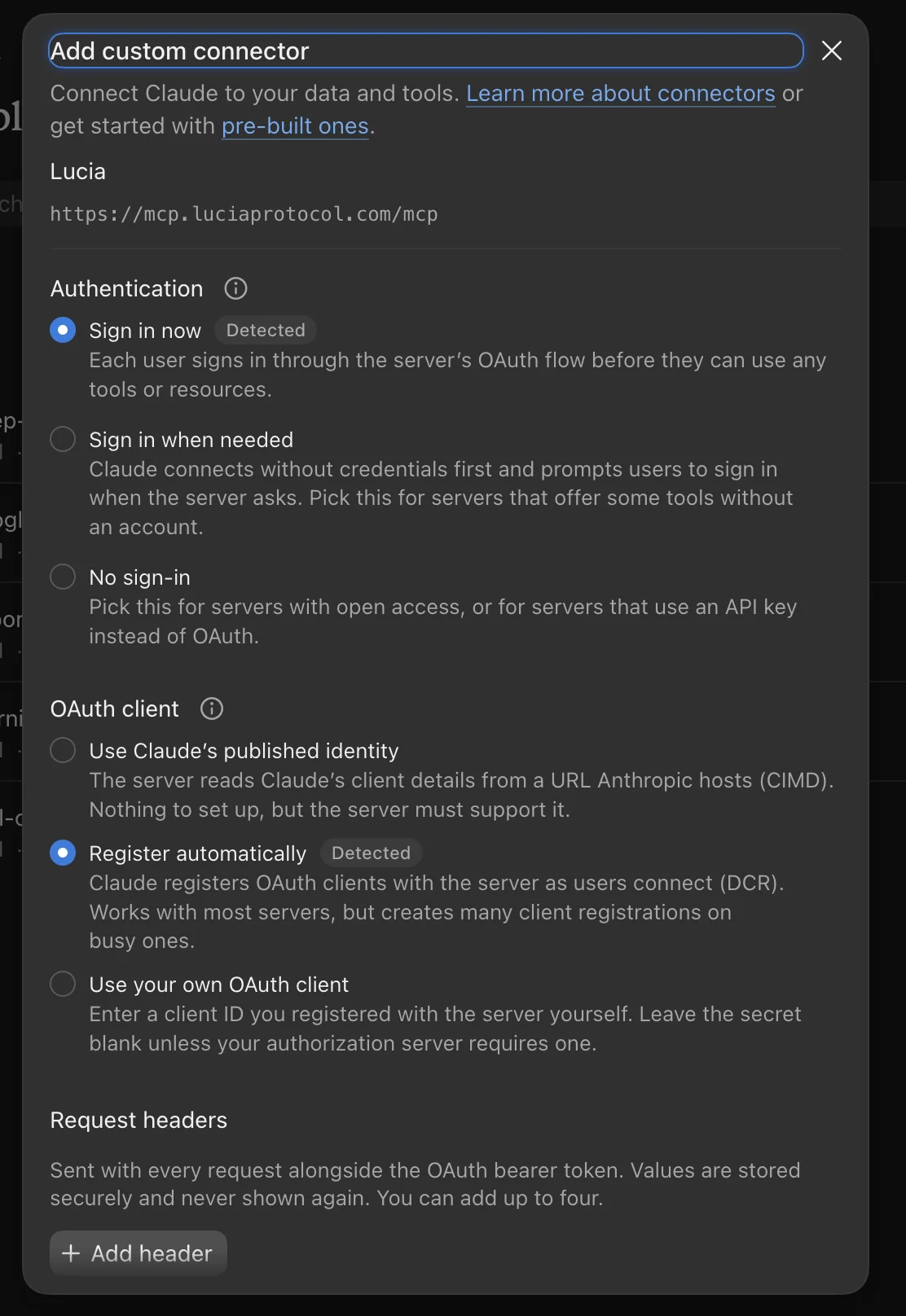
3. Connect and sign in
Open the new Lucia connector and click Connect. A browser tab opens: sign in to Lucia (email code) and approve access.
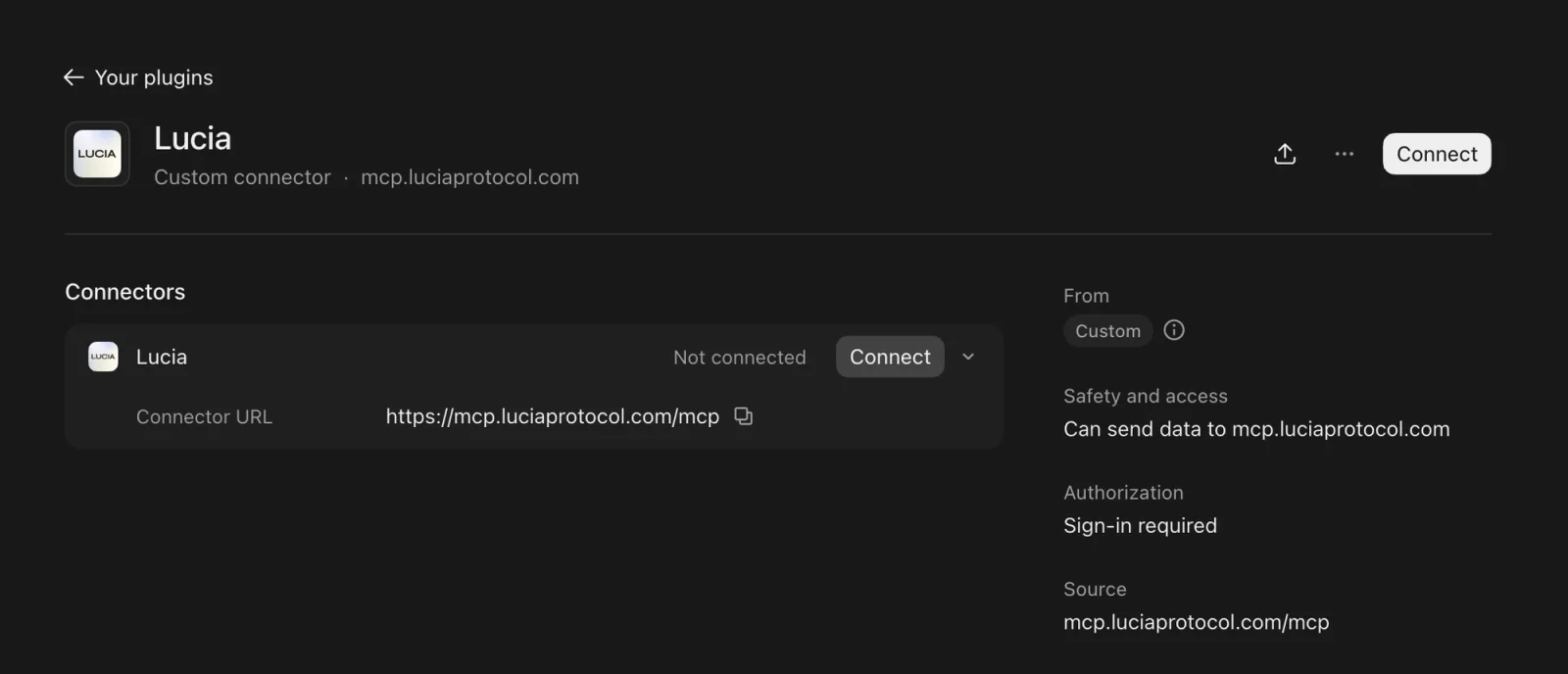
When it's done, the connector shows as connected, and the Lucia tools appear under the + (tools) menu in a chat.
On a Team or Enterprise plan, an org owner may need to add the connector for your organization first.
If Connect shows this message, the automatic registration step failed. Don't retry with a different OAuth option. Contact us and include the reference code from the message (it starts with ofid_).
Verify the connection
Start a new chat (Desktop) or session (CLI) and try these prompts. They only read data.
-
Are the tools there?
List the tools you have from the Lucia connector.
You should see
list_campaigns,create_campaign,campaign_results,outreach_statsand others. -
Does it reach your workspace?
List my Lucia campaigns.
Claude should call
list_campaignsand return your workspace's campaigns. An empty list for a new workspace still counts as a working connection. -
Is it the right account?
List my Lucia campaigns with their names and creation dates.
If you recognize the campaigns, you're connected to the right workspace. If not, sign out at app.luciaprotocol.com, sign in with the right account, then disconnect and reconnect the connector.
create_campaign, pause_campaign and import_contacts change real data in your workspace. Use them once you've confirmed you're connected to the right account.
What you can do
The server exposes these tools: list_campaigns, create_campaign, campaign_results, pause_campaign, list_audiences, create_audience, import_contacts, draft_campaign, list_drafts, view_draft, request_approval, outreach_stats, and others.
For example, with the influencer guides you can ask Claude to set up the links from Measuring Influencer ROI for you:
Create a Multi-creator campaign for Instagram called "Spring influencers" with one link per influencer: @alice with code VIVE20 and @bob with code BLACKFRIDAY25, pointing to yourstore.com/collections/sale.